Unmount disk
umount /dev/sdb1Gunakan perintah tunefs untuk mengubah jenis partisi
tune2fs -O extents,uninit_bg,dir_index /dev/sdb1Mount disk kembali
mount /dev/sdb1 /mnt1Unmount disk
umount /dev/sdb1Gunakan perintah tunefs untuk mengubah jenis partisi
tune2fs -O extents,uninit_bg,dir_index /dev/sdb1Mount disk kembali
mount /dev/sdb1 /mnt1Tutorial ini mengajarkan tentang cara membuat blog statis menggunakan Hugo pada Windows 10.
Ada banyak pilihan tema open-source untuk membuat blog dengan Hugo. Dalam tutorial ini, kita akan menggunakan tema Hulga.
Ini adalah langkah-langkah menginstall hugo dan menerapkan tema pada blog:
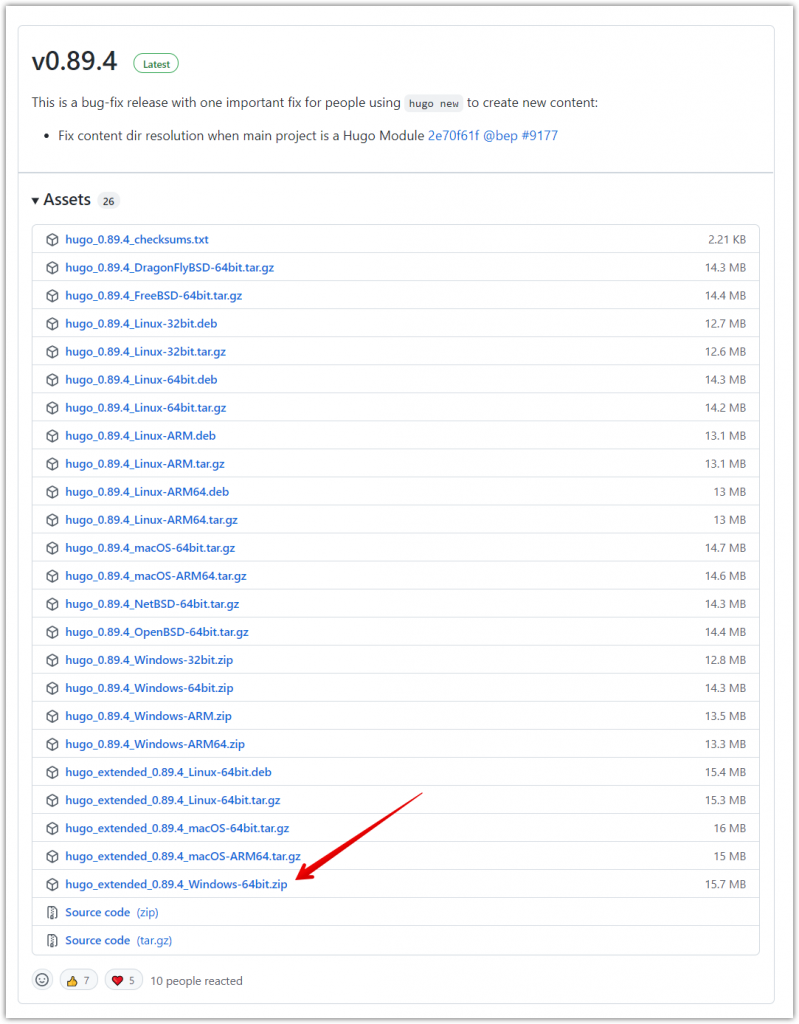
C:\Hugo\bin , atau folder apapun yang Anda pilih.C:\Hugo\bin) ke Path (ada di bagian System Environment pada setting Windows).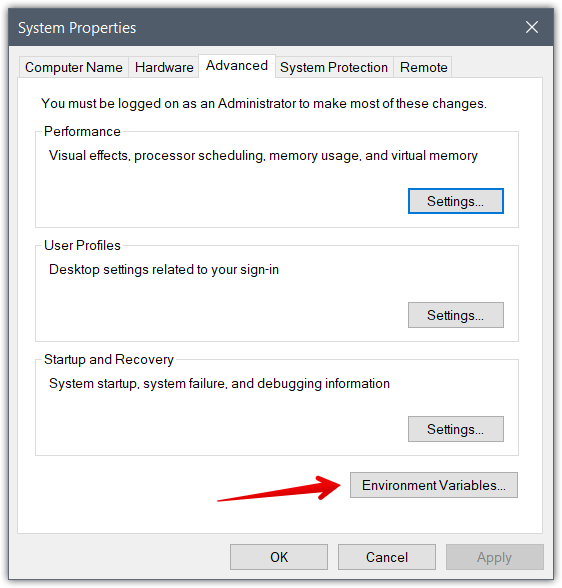
hugo version . Jika tidak ada pesan error, maka Anda sudah berhasil menginstall Hugo.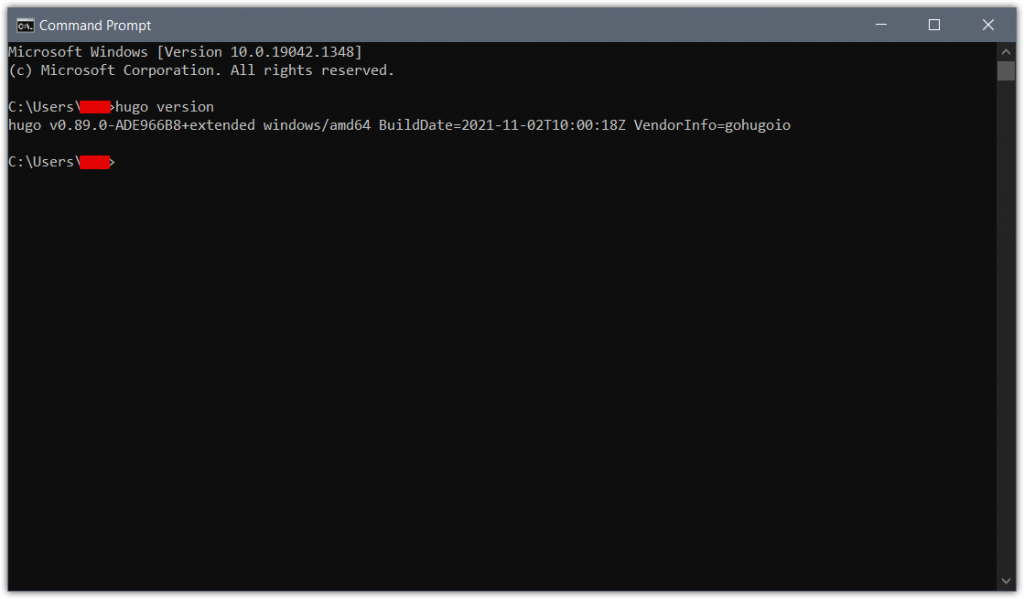
hugo new site mysite . Command ini akan membuat folder bernama mysite yang akan menjadi source blog Anda.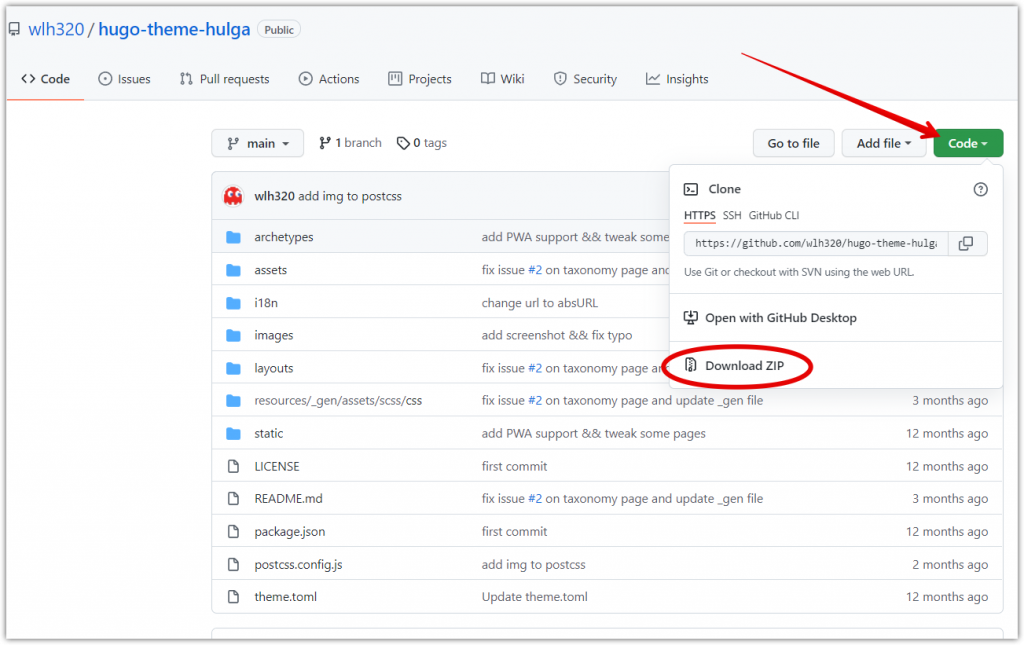
mysite/themes, dan ganti nama folder hugo-theme-hulga menjadi hulga
theme = "hulga" ke file config.toml yang ada pada direktori mysite. Ini adalah contoh file config.toml sederhana: baseURL = "https://example.com"
languageCode = "id"
title = "Site Hugo Baru"
paginate = 10
theme = "hulga"
[params]
subtitle = "Keterangan website."
copyright = "Copyright © 2021"
[menu]
[[menu.main]]
identifier = "index"
name = "index"
url = "/"
weight = 1
[taxonomies]
category = "categories"
tag = "tags"
post di dalam folder mysite\content
mypost.md di dalam mysite\content\postmypost.md sederhana:---
title: "Postingan Pertama"
date: 2021-11-17T14:15:55+07:00
draft: false
categories: [development, publishing]
tags: [hugo, static site generator]
---
Postingan pertama.
mysite dengan mengetik cd mysite
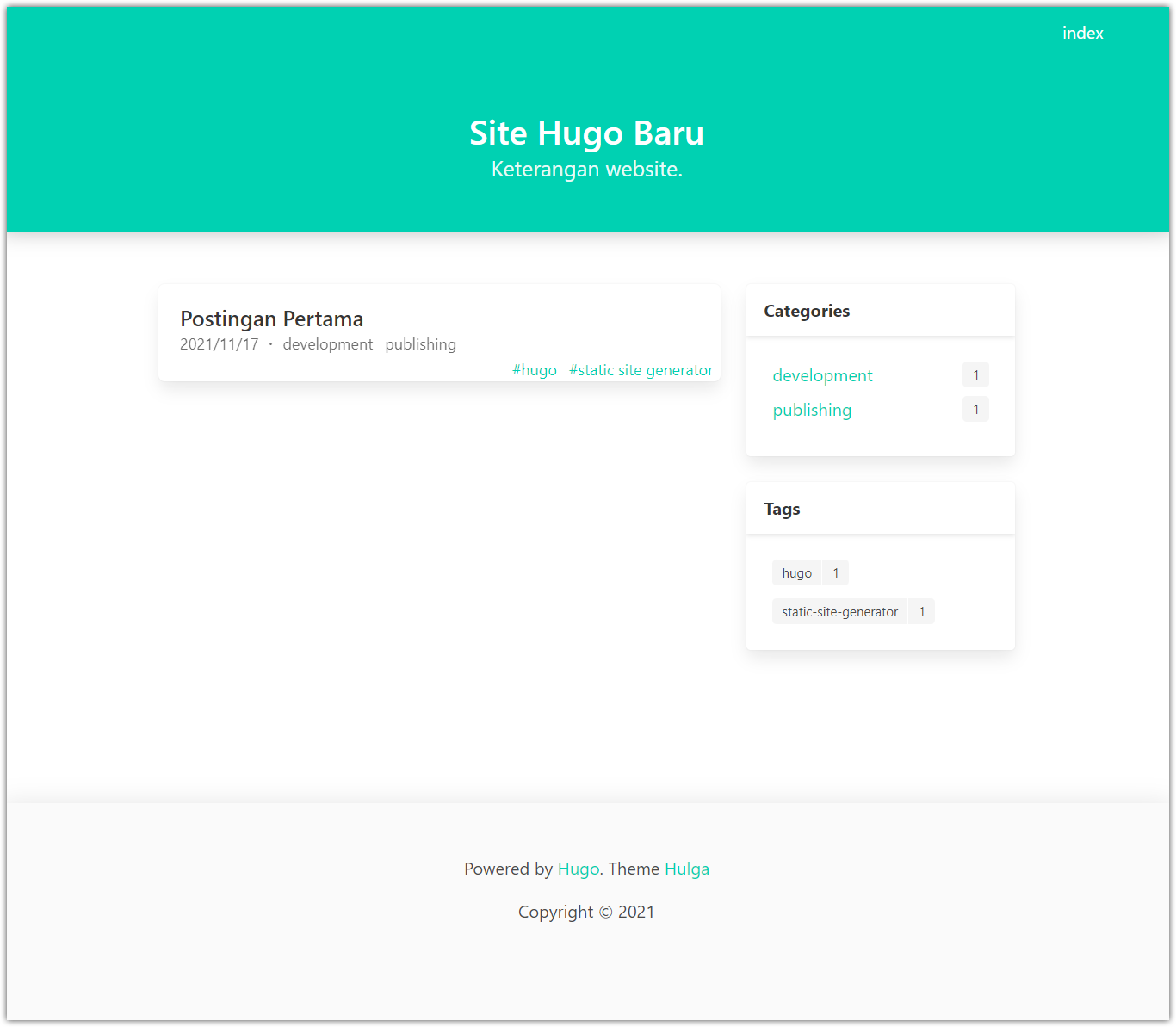
hugo server.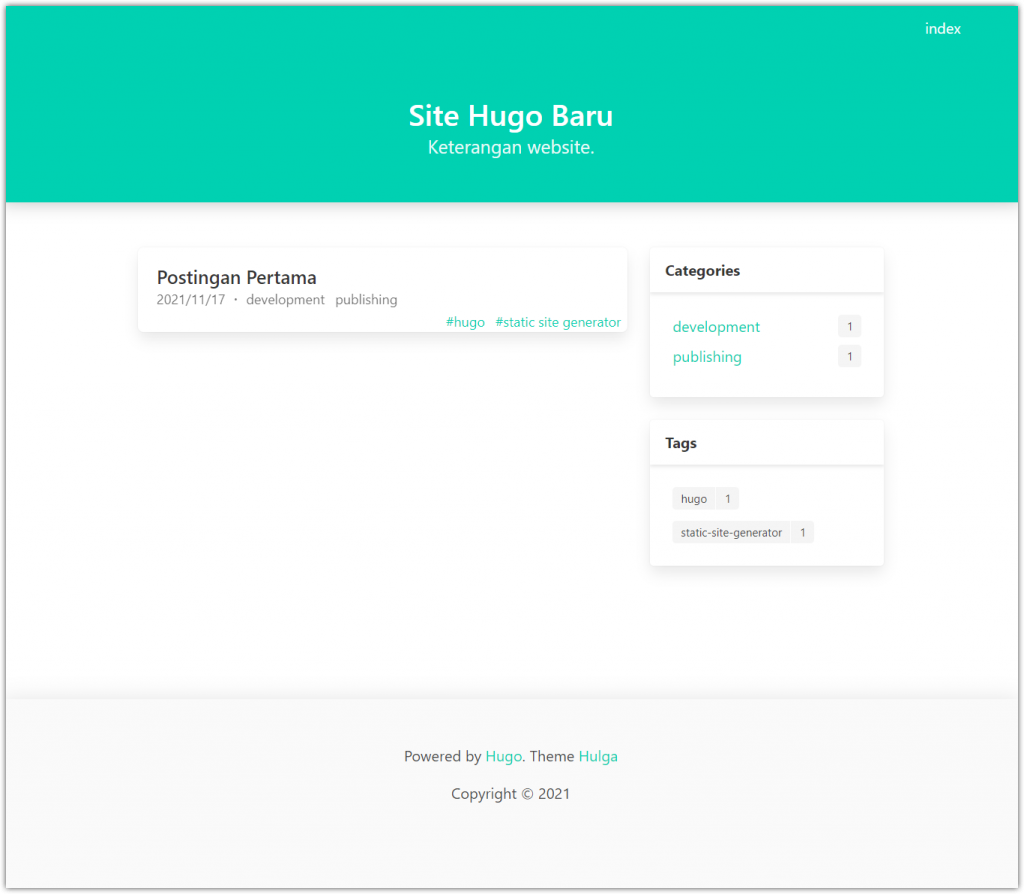
Referensi:
https://www.freecodecamp.org/news/your-first-hugo-blog-a-practical-guide/
https://gohugo.io/getting-started/quick-start/
https://gohugo.io/getting-started/installing/
https://themes.gohugo.io/themes/hugo-theme-hulga/
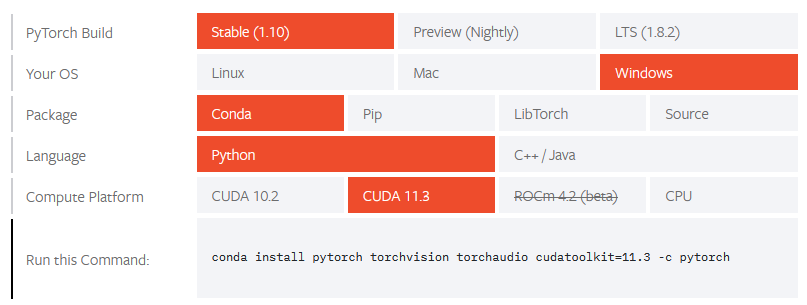
Perintah untuk instalasi pytorch:
conda install pytorch torchvision torchaudio cudatoolkit=11.3 -c pytorchPermasalahan:
Downloading and Extracting Packages
pytorch-1.10.0       | 1.45 GB   | ######################################################1                      |  71%

CondaHTTPError: HTTP 000 CONNECTION FAILED for url <https://conda.anaconda.org/pytorch/win-64/pytorch-1.10.0-py3.9_cuda11.3_cudnn8_0.tar.bz2>
Elapsed: -

An HTTP error occurred when trying to retrieve this URL.
HTTP errors are often intermittent, and a simple retry will get you on your way.
Penyebab
Solusi:
Ubah timeout, dengan perintah “conda config --set remote_read_timeout_secs new_time_out , atau
Download file besar secara manual menggunakan wget